Using BOSfluids for Scenario Simulation
DRG » Knowledge Base Articles » Using BOSfluids for Scenario Simulation
Table of Contents
BOSfluids is a robust fluid dynamics simulation tool designed to analyze transient flow conditions, such as water hammer and surge events, in piping systems. One of its most powerful features is the ability to create and manage scenarios, which allow users to efficiently study parameter variations within a single model. This documentation provides a detailed guide on how to use BOSfluids for scenario simulation.
What Are Scenarios?
Scenarios in BOSfluids are variations of a base model that allow users to explore different configurations, parameter changes, and actions without creating separate models for each variation. This feature is particularly useful for analyzing the effects of parameter changes on system behavior in a structured and efficient manner.
Key Features of Scenarios
Key Features of Scenarios:
- Centralized Model Management: The “main” model serves as the foundation for all scenarios. Any changes made to the main model are automatically reflected across all scenarios.
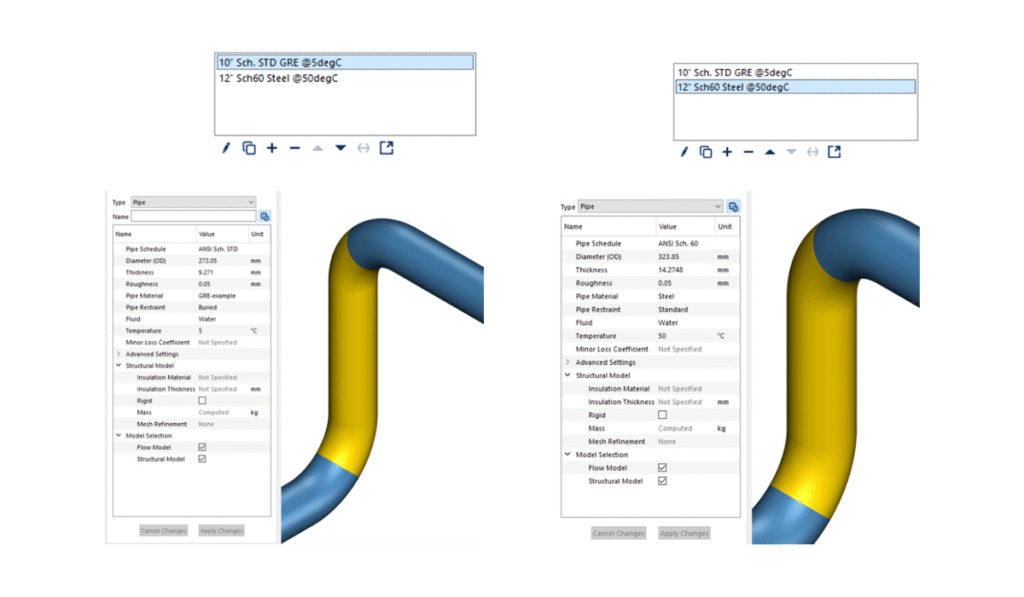
- Parameter Variation: Scenarios allow users to modify parameters, model selections, and actions independently of the main model.
- Efficient Comparison: Scenarios streamline the process of comparing results from different configurations, enabling users to identify trends and optimize system performance.
How to Create Scenarios Using BOSfluids
- Develop the Main Model: Start by creating the main model in the Model tab. This model acts as the baseline for all scenarios.
- Access the Scenarios Tab: Navigate to the Scenarios tab to manage and create new scenarios.
- Create a New Scenario: Click the “+” button to add a new scenario. Afterward, you can modify parameters, model selections, and actions within the new scenario as needed.
- Model Changes: New elements or deletions can only be made in the main model. These changes will automatically propagate to all scenarios.
How to Track the Differences Between Scenarios
BOSfluids provides tools to help users track and manage differences between scenarios effectively. This ensures that variations are well-documented and easy to analyze.
Tools for Tracking Differences:
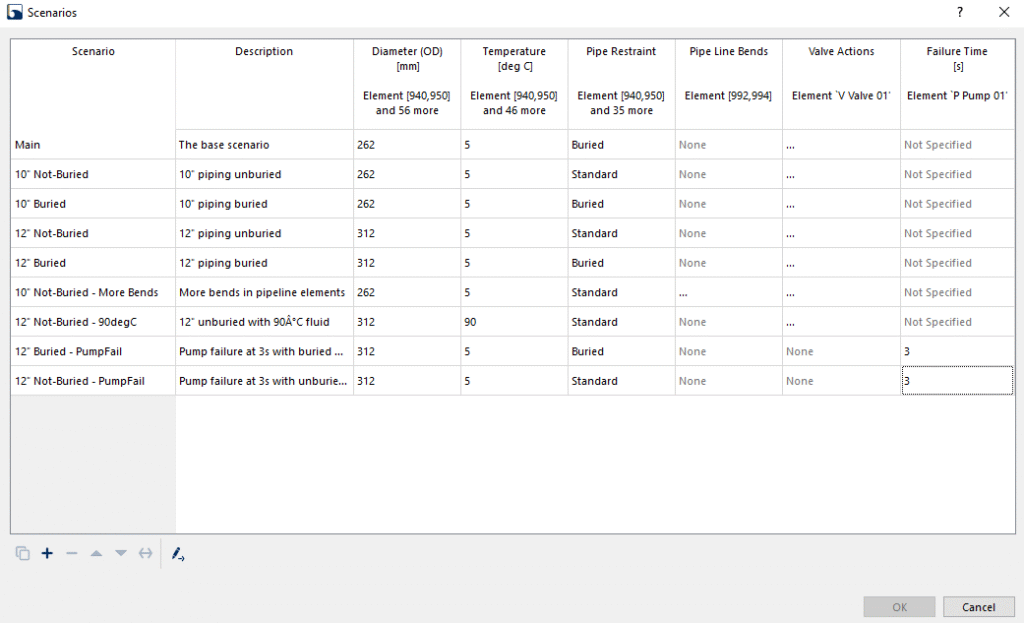
- Scenario Manager: The Scenario Manager provides an overview of all developed scenarios. It highlights parameter differences between scenarios, making it easy to identify what has been changed.
- Scenario Descriptions: Users can manually describe each scenario in the Scenario Descriptions section. This is useful for documenting the purpose and specific variations of each scenario.
- Tool Actions: The Tool Actions section allows users to view graphs of transient actions for each scenario, providing a visual representation of the differences.
- Field Selections: The Field Selections section enables users to inspect individual parameters within a scenario, offering a detailed view of the variations.
How to Run Multiple Scenarios in Parallel
One of the most time-saving features of BOSfluids is its ability to run multiple scenarios simultaneously. This is particularly useful for large-scale analyses where multiple configurations need to be tested.
Steps to Run Scenarios in Parallel:
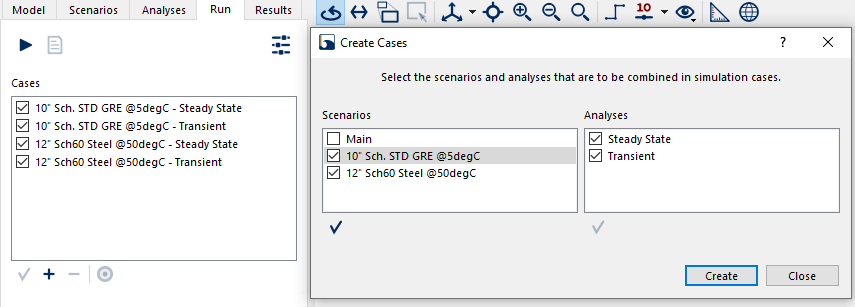
- Select Scenarios and Analysis Types: In the Runtab, select the scenarios you want to analyze. Choose the desired analysis type for each scenario.
- Configure Parallel Processing: Specify the number of processors to use for the analyses. BOSfluids will distribute the workload across the selected processors, leveraging multi-core processing capabilities.
- Run the Analyses: Start the simulation. BOSfluids will execute the analyses for all selected scenarios in parallel, significantly reducing computation time.
How to Review Multiple Scenarios Results
After running the analyses, BOSfluids provides tools to review and compare results across scenarios. This is essential for understanding the impact of parameter variations and drawing meaningful conclusions.
Reviewing and Comparing Results:
- Select Results for Comparison: Use Ctrl + Click or Shift + Click to select multiple results for comparison.
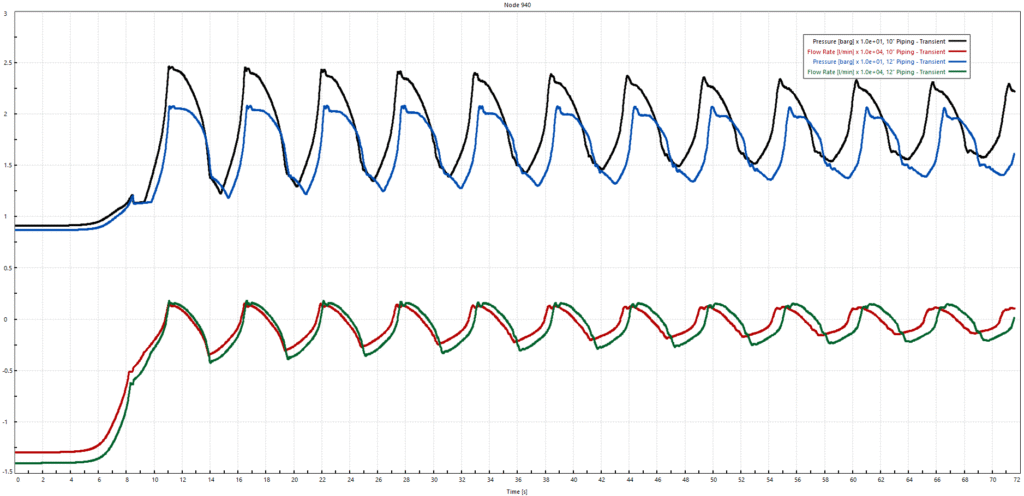
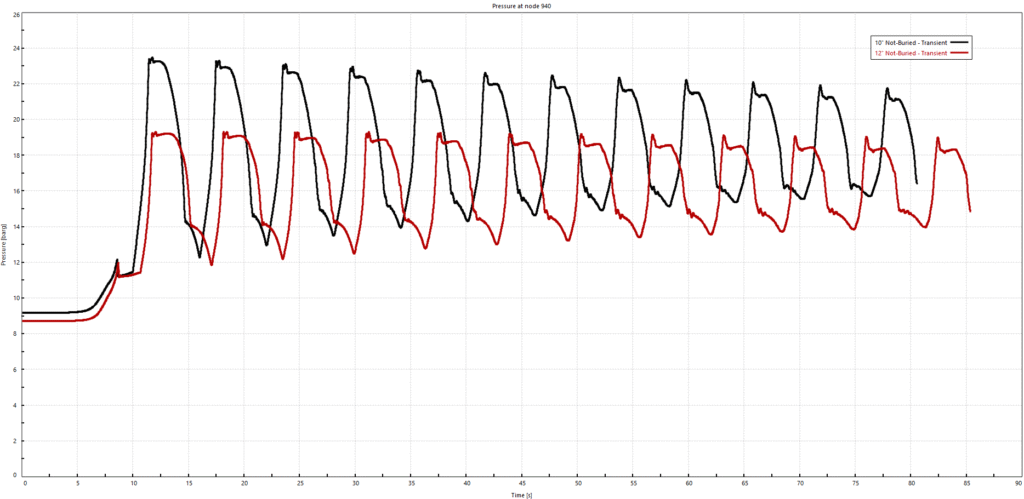
- Generate Comparison Graphs: BOSfluids allows users to create graphs that display differences between scenarios. These graphs provide a visual representation of trends and variations.
- Analyze Key Metrics: Focus on critical parameters, such as total displacement, transient actions, or other system-specific metrics, to evaluate performance and identify areas for improvement.